
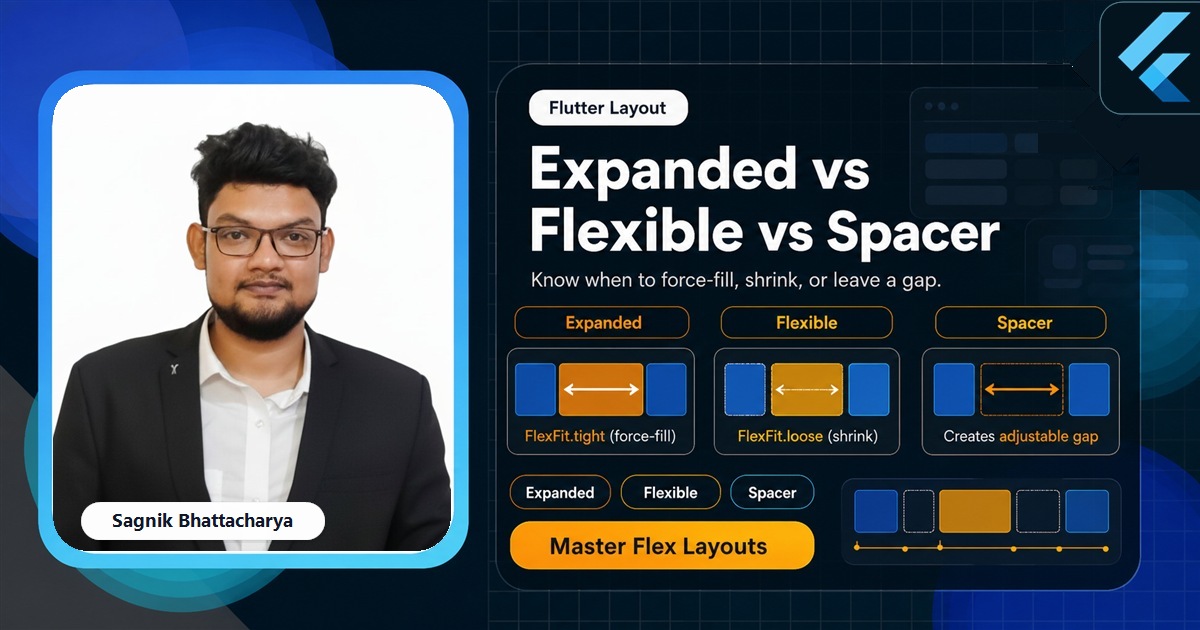
Row and Column give every child its natural size by default. When there is space left over after laying out the children, nothing claims it unless you tell something to. Expanded, Flexible, and Spacer are the three widgets that claim that leftover space along the main axis — and Expanded in particular is the single most common fix for a RenderFlex overflowed error. This guide covers exactly what each one does, the flex factor, FlexFit, and when to reach for which.

The Complete Flutter Course: Build Android, iOS and Web apps
Go from scratch to building industry-standard apps with Riverpod, Firebase, animations, REST APIs, and more.
By Sagnik Bhattacharya and Paulina Knop
Buy nowEvery snippet below is paste-ready against current stable Flutter inside a Row or Column. If you haven't already, the Row and Column guide covers MainAxisAlignment, CrossAxisAlignment, and spacing — this post picks up exactly where it leaves off and goes deep on the three space-claiming widgets.
We'll cover what Expanded actually does under the hood, how Flexible differs through FlexFit, the flex factor for proportional space-splitting, Spacer for pure empty space, the unbounded-constraints error these widgets cause when misused, and a decision guide for picking the right one every time.
This tutorial sits alongside the Row and Column guide and the RenderFlex overflow guide — between the three you'll have a complete picture of how Flutter distributes space along a main axis, and exactly what to do when it runs out.
What Expanded does
Expanded forces its child to fill all the remaining space along the main axis of the enclosing Row, Column, or Flex. It must be a direct child of one of those three widgets.
Row(
  children: [
    const Icon(Icons.search),
    Expanded(
      child: Text(
        'This text fills every remaining pixel of the row',
        overflow: TextOverflow.ellipsis,
      ),
    ),
  ],
)
The icon takes its natural width first; whatever width is left over in the Row is handed entirely to the Text, which is exactly why Expanded is the standard fix for a RenderFlex overflow — give the offending child a defined share of the remaining space instead of letting it ask for more than exists.
What Flexible does
Flexible looks similar but behaves differently: it lets its child be smaller than the allotted space. The child decides its own size, up to a maximum equal to the space Flexible would otherwise hand it. The default fit is FlexFit.loose.
Row(
  children: [
    Flexible(
      child: Container(
        color: Colors.indigo.shade100,
        child: const Icon(Icons.star), // small — doesn't need much room
      ),
    ),
    const Text('text next to it'),
  ],
)
Here the indigo container only grows as large as its Icon child needs — it does not stretch to fill the row. Swap Flexible for Expanded in that same snippet and the container would stretch, because Expanded gives the child tight constraints rather than loose ones.
Expanded is just Flexible with FlexFit.tight
This is the detail that makes everything else click: Expanded is not a separate widget with its own logic — it is Flexible with fit hard-coded to FlexFit.tight.
// Roughly how the framework defines it:
class Expanded extends Flexible {
  const Expanded({super.key, super.flex = 1, required super.child})
      : super(fit: FlexFit.tight);
}
FlexFit.tight gives the child a fixed, exact main-axis extent — it must be that size. FlexFit.loose gives the child a maximum extent but allows anything from zero up to that maximum, so the child's own intrinsic size decides. Once you see Expanded as "Flexible, but forced," the choice between them stops being a guess.
The flex factor: splitting space proportionally
Both widgets take a flex integer (default 1). Flutter lays out non-flexible children first, then divides whatever space remains among the flexible siblings in proportion to their flex values.
Row(
  children: [
    Expanded(flex: 1, child: Container(color: Colors.red.shade100)),   // 25%
    Expanded(flex: 2, child: Container(color: Colors.green.shade100)), // 50%
    Expanded(flex: 1, child: Container(color: Colors.blue.shade100)),  // 25%
  ],
)
The flex values do not need to add up to anything in particular — only the ratio between siblings matters. This is the standard way to build a sidebar-and-content split, an evenly weighted set of stat cards, or an image gallery with a few wide columns and a few narrow ones, all without hard-coding pixel widths.
Stop guessing your layouts
The Complete Flutter Course covers responsive, flex-based layouts from first principles through to shipped apps.
By Sagnik Bhattacharya and Paulina Knop
Buy nowSpacer: pure empty flexible space
Spacer claims flexible space without rendering anything — it is shorthand for Expanded(child: SizedBox.shrink()). It takes a flex value just like Expanded.
Row(
  children: [
    const Icon(Icons.menu),
    const Spacer(),               // pushes the next icon to the far right
    const Icon(Icons.settings),
  ],
)
For two children, MainAxisAlignment.spaceBetween on the Row often reads more clearly than a Spacer. Reach for Spacer when you have three or more children and need an asymmetric gap — say, two icons grouped on the left and one pushed to the right, which alignment values alone cannot express.
The "unbounded constraints" error
Expanded and Flexible need a finite amount of space to divide. The most common runtime error tied to these widgets is:
RenderFlex children have non-zero flex but incoming
width constraints are unbounded.
This happens when a Row or Column carrying an Expanded/Flexible child is itself placed somewhere with no bound on that axis — classically, a Row inside a horizontally scrolling ListView, or a Column inside a vertically scrolling one. A scrolling list offers infinite space along its scroll axis, and "fill the remaining infinite space" is not something Flutter can compute.
// Throws: Row is inside a horizontally-scrolling ListView
ListView(
  scrollDirection: Axis.horizontal,
  children: [
    Row(
      children: [
        Expanded(child: Container(color: Colors.amber)), // unbounded width
      ],
    ),
  ],
)
Fix it by giving the offending axis a fixed extent — wrap the Row in a SizedBox(width: 200, ...) — or by removing Expanded entirely and sizing the child explicitly, since "fill the available space" is not a coherent instruction inside an infinitely scrolling axis.
Nesting Expanded across Row and Column
Real layouts usually nest Expanded across both axes — a Column that fills the screen, with one Row inside it that itself has flexible children. This is the standard shape for a media-player control bar or a two-pane detail screen.
Column(
  children: [
    const SizedBox(height: 80, child: Placeholder()), // fixed header
    Expanded( // fills all remaining vertical space
      child: Row(
        children: [
          Expanded(flex: 2, child: Container(color: Colors.brown.shade100)), // main pane
          Expanded(flex: 1, child: Container(color: Colors.brown.shade300)), // side pane
        ],
      ),
    ),
  ],
)
Read it from the outside in: the outer Expanded claims all vertical space below the fixed header; the inner Expanded widgets then split that space horizontally 2:1. Each Expanded only ever negotiates with its immediate Row or Column — there is no global layout pass to reason about.
Decision guide
- Use
Expandedwhen the child should always fill whatever space remains — an image filling a panel, a list filling the space below a header, a text field filling a toolbar row. - Use
Flexiblewhen the child should size itself but never exceed the available space — text that should wrap or shrink rather than stretch, a chip or button that looks wrong stretched edge-to-edge. - Use
Spacerwhen you need empty, flexible gap and there is no widget to constrain. - Use a fixed width/height instead of any of these when the size is a known constant rather than a share of available space — a plain
SizedBoxor a sized Container covers that case.
| Behaviour | Expanded | Flexible (loose) | Spacer |
|---|---|---|---|
| FlexFit | tight | loose | tight (empty) |
| Forces child to fill its share | Yes | No — child may be smaller | No child |
| Takes a child widget | Yes | Yes | No |
| Honours a flex factor | Yes | Yes | Yes |
| Use when | The child should fill the remaining space | The child sizes itself but must not overflow | You need flexible empty gap |
Common mistakes
- Using Expanded outside a Row/Column/Flex. It only works as a direct child of one of those three — elsewhere it throws an "Incorrect use of ParentDataWidget" error.
- Using Expanded inside a scrollable along its own scroll axis. Causes the unbounded-constraints error above; size the axis explicitly instead.
- Forgetting that Flexible lets children shrink. If a Flexible child looks smaller than expected, that's correct behaviour, not a bug — switch to Expanded if it should stretch.
- Using arbitrary flex values without a reason. Stick to small, readable ratios (1, 2, 3) and let the ratio reflect an actual design proportion.
- Reaching for Expanded when alignment is enough. For two fixed-size children pushed to opposite ends,
MainAxisAlignment.spaceBetweenis simpler than an Expanded/Spacer combination.
Frequently asked questions
What is the difference between Expanded and Flexible in Flutter?
Expanded forces its child to fill the remaining main-axis space exactly. Flexible lets its child be smaller than that space if it doesn't need all of it. Expanded is Flexible with fit: FlexFit.tight; Flexible defaults to fit: FlexFit.loose.
What does the flex factor do in Flutter?
The flex integer controls how leftover space is split among multiple flexible siblings, proportionally. A sibling with flex: 2 gets twice the space of one with flex: 1.
What is FlexFit.loose vs FlexFit.tight?
FlexFit.tight forces the child to be exactly the allotted extent. FlexFit.loose allows anything from zero up to that extent, so the child can be smaller.
Why do I get "RenderFlex children have non-zero flex but incoming width constraints are unbounded"?
Expanded/Flexible is inside a Row or Column placed along an axis with no bound — typically a scrolling list in the same direction. Give that axis a fixed size, or remove the flexible widget.
Every Flutter tutorial on this site, more than 120 so far, is free and written by Sagnik Bhattacharya, founder of Coding Liquids. If you want the same ground covered as one guided path, The Complete Flutter Course at codingliquids.com covers responsive, flex-based layouts from first principles through to shipped apps.
Further reads
Keep going with the tutorials that pair with this guide:
- Flutter Development Guide 2026 — the full Flutter hub.
- Flutter Layout Widgets: The Complete Guide — every layout widget and the constraints rule.
- Flutter Row and Column — MainAxis, CrossAxis, and spacing fundamentals.
- Fix RenderFlex Overflow Errors — Expanded as the standard overflow fix, in context.
- Flutter Container Widget Explained — sizing widgets to a fixed extent instead of a flexible share.
- Flutter SizedBox vs ConstrainedBox — fixed and constrained sizing, the counterpart to a flexible share.
- Flutter Text and TextStyle — wrap a Text in Expanded so its ellipsis works.
- Flutter ListView.builder — wrap a ListView in Expanded inside a Column.
- Flutter Wrap Widget — give a Wrap a bounded width with Expanded inside a Row.
Sources: Flutter documentation — Expanded, Flexible, Spacer, Flex, FlexFit, and RenderFlex API references, plus the Layout guide (docs.flutter.dev). Verified against current stable Flutter.