
Every developer I talk to has the same question: can I get a proper AI coding assistant without paying $10–$19 a month and without sending my code to someone else's servers? The answer, as of mid-2026, is yes — and Gemma 4 running locally through Ollama inside VS Code is the best way to do it. Not a toy. Not a compromise you have to apologise for. A genuinely useful coding companion that lives entirely on your machine.
I have been running this setup full-time for over a month now, across Flutter, Python, and TypeScript projects. This guide is the result of that daily use — not a quick test, but a real workflow built on top of Gemma 4. I will walk you through four different ways to wire it into VS Code — including wiring Gemma 4 directly into GitHub Copilot Chat via its new local-model support — plus a fifth method that skips VS Code entirely and lets you use Gemma 4 from the terminal or PowerShell to analyse your entire project folder. I will show you which method I actually use every day, and give you the specific settings that make the experience feel fast rather than frustrating. If you have not installed Gemma 4 yet, start with my beginner's guide to running Gemma 4 locally and come back here once Ollama is running.
Before You Start: Does Your Machine Have Enough Power?
Gemma 4 runs entirely on your hardware — there is no cloud fallback. If your machine cannot handle it, you will get painfully slow completions that break your flow instead of helping it. Here is what you actually need:
- Windows or Linux with an NVIDIA GPU: 8GB of VRAM is the practical starting point for
gemma4:e4b, the best default tag for most developers. If your GPU only has 4-6GB of VRAM, start withgemma4:e2band expect simpler suggestions. - Mac with Apple Silicon: Any M1, M2, M3, or M4 chip with 16GB of unified memory handles
gemma4:e4bcomfortably. With 24GB+ unified memory you can trygemma4:26b, and 32GB+ gives you a better shot at the fullgemma4:31bmodel. - No dedicated GPU at all:
gemma4:e2bcan still run on CPU, but expect 2-5 seconds per completion instead of under a second. You need 8GB of RAM minimum, 16GB preferred. It is usable for chat workflows but frustrating for inline autocomplete.
Quick hardware check: On Windows, press Ctrl+Shift+Esc to open Task Manager, go to "Performance" then "GPU" — look for "Dedicated GPU memory". On Mac, click the Apple menu and check "About This Mac" for your chip and memory. On Linux, run nvidia-smi in a terminal.
Install VS Code (Skip If You Already Have It)
If VS Code is already on your machine, jump straight to the Ollama section below.
- Head to code.visualstudio.com and grab the installer for your OS.
- Windows: Run the
.exe. During installation, tick "Add to PATH" and "Register Code as an editor for supported file types" — both save you headaches later. - Mac: Unzip the download, drag VS Code into Applications. On first launch, right-click the icon and select "Open" to get past the macOS Gatekeeper warning.
- Linux: Download the
.debpackage and runsudo dpkg -i code_*.deb, or install via snap withsudo snap install code --classic.
- Windows: Run the
- Open VS Code and press
Ctrl+`(the backtick key above Tab) to open the integrated terminal. You will need this for the next steps.
Install Ollama — The Engine Behind Everything
Ollama is the piece that actually downloads and runs Gemma 4 on your machine. Think of it as a local server that sits quietly in the background, waiting for VS Code extensions to send it prompts. Every method in this guide relies on it.
- Go to ollama.com and download the installer.
- Windows: Run the
.exe. After installation, Ollama starts automatically and shows up as an icon in your system tray (bottom-right corner, near the clock). - Mac: Open the
.dmg, drag Ollama into Applications, and launch it. You will see its icon appear in the menu bar. - Linux: Run
curl -fsSL https://ollama.com/install.sh | shin your terminal. It installs and starts as a background service automatically.
- Windows: Run the
- Verify the installation: Open a terminal and run:
If you see a version number, you are good. If you get "command not found", restart your terminal or reboot your machine.ollama --version - Confirm the server is live: Visit
http://localhost:11434in your browser. You should see the text "Ollama is running". If not, relaunch the Ollama app from your Start menu or Applications folder.
Download Gemma 4 — One Command, One-Time Download
This step downloads the model weights to your local disk. It only happens once — after that, the model loads from storage in seconds every time you start coding.
As of this update, Google's Gemma 4 lineup is E2B, E4B, 12B, 26B A4B, and 31B — the 12B arrived in June 2026 as gemma4:12b and needs Ollama v0.30.5 or later. Ollama's Gemma 4 tags follow that naming, so use the explicit tags below instead of older 27B references you may see elsewhere.
- Open a terminal (or use the VS Code integrated terminal with
Ctrl+`). - Pull the E4B model, which is the best balance of speed and quality for most developers:
ollama pull gemma4:e4b - Limited VRAM or CPU only? Pull the lightest official Ollama tag:
ollama pull gemma4:e2b - Got 16GB+ VRAM or plenty of unified memory? Pull the 26B A4B mixture-of-experts model for noticeably stronger reasoning:
ollama pull gemma4:26b - Got 24GB+ VRAM or 32GB+ unified memory? Pull the flagship 31B model:
ollama pull gemma4:31b. If you want the explicit quantised tag, useollama pull gemma4:31b-it-q4_K_M. - Verify the download: Run
ollama list— your model should appear with its size. - Quick sanity check: Run
ollama run gemma4:e4bto open a chat. Ask it something simple like "Write a hello world in Python". If you get working code back, everything is set up correctly. Type/byeto exit.
Test Gemma 4 in the Ollama Desktop App (No VS Code Needed)
Recent Ollama builds ship with a built-in desktop chat window — it is the fastest way to confirm your install is working before you wire anything into VS Code. If the desktop app talks to Gemma 4 cleanly, every method below will work too, because all of them connect to the same local Ollama server at localhost:11434.
- Open the Ollama app from your Start menu (Windows), Applications folder (Mac), or the system tray icon.
- You will see a minimal chat interface with a model picker in the bottom-right. Click it and pick whichever variant you pulled, such as
gemma4:e2b,gemma4:e4b,gemma4:26b, orgemma4:31b. - Type a quick prompt like "Write a Python function that reverses a string" and press Enter. Gemma 4 should start streaming a response within a second or two.
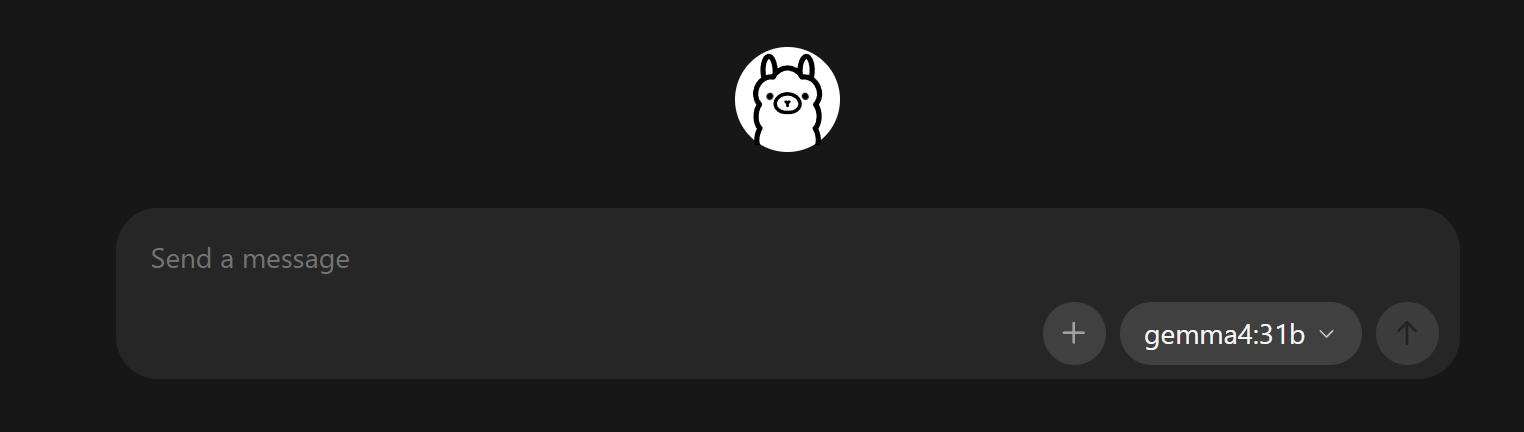
Don't see a chat window? You are on an older Ollama build. Update to the latest version from ollama.com — the desktop chat UI is bundled with every fresh install. The CLI ollama run gemma4:e4b command (above) still works on every version if you prefer staying in the terminal.
Method 1: Continue Extension — The Full Copilot Replacement (Recommended)
This is the method I use every day and the one I recommend to most developers. Continue gives you chat, inline code edits, and tab-autocomplete — essentially everything GitHub Copilot does, but pointed at your local Gemma 4 model. If you use Android Studio for Flutter work, the same Continue + Ollama setup works there too.
Setup
- In VS Code, press
Ctrl+Shift+X(Cmd+Shift+Xon Mac) and search for Continue. Install the one published by Continue.dev. - Click the Continue icon in the left sidebar. The onboarding wizard launches and detects Ollama automatically — it lists every model you have pulled. Select Ollama as your provider.
- If it prompts you to sign in, click Skip or Use local models. You do not need an account for local usage.
- Pick Gemma 4 from the model dropdown at the top of the chat panel. Chat and inline edit work immediately after this step.
Enable tab autocomplete (important — it is off by default)
Continue's chat and inline edit features work out of the box, but tab autocomplete is not enabled by default. You need to configure it separately:
- Open Continue's config file. Press
Ctrl+Shift+P(Cmd+Shift+Pon Mac), typeContinue: Open Config, and select it. Newer Continue versions useconfig.yaml; older installations may still showconfig.json. The file lives in~/.continue/on Mac/Linux orC:\Users\YourName\.continue\on Windows. - In
config.yaml, add Gemma 4 undermodelsand include theautocompleterole:name: Local Gemma 4 version: 0.0.1 schema: v1 models: - name: Gemma 4 E4B Chat provider: ollama model: gemma4:e4b roles: - chat - edit - apply - name: Gemma 4 E2B Autocomplete provider: ollama model: gemma4:e2b roles: - autocomplete autocompleteOptions: debounceDelay: 350 maxPromptTokens: 1024 - If your Continue install still uses
config.json, the oldertabAutocompleteModelstyle can still work, but treat that as a legacy path and migrate to YAML when the extension prompts you. - Save the file. Continue reloads the config automatically — no VS Code restart needed.
Tip: For faster autocomplete, keep a smaller model such as gemma4:e2b dedicated to tab completions while using gemma4:e4b, gemma4:26b, or gemma4:31b for chat. Speed matters more than quality for inline suggestions.
Three shortcuts you will use constantly
- Chat about selected code: Highlight any block of code and press
Ctrl+L(Cmd+Lon Mac). Ask things like "explain this", "find bugs", or "what happens if the input is null?". You can also type@fileor@codebasein the chat to reference other files without manually pasting them. - Edit code inline: Highlight code, press
Ctrl+I(Cmd+Ion Mac), and type an instruction — "add error handling", "convert to async/await", "add TypeScript types". You get a diff to review before accepting. - Tab autocomplete: Just start typing. Grey ghost text appears after a brief pause — press
Tabto accept the suggestion, or keep typing to ignore it. PressEscto dismiss.
Troubleshooting
- No suggestions or chat responses: Open
http://localhost:11434in your browser. If it does not say "Ollama is running", relaunch Ollama from your Start menu or Applications folder. - Tab autocomplete not appearing: Make sure your
config.yamlmodel includes theautocompleterole. Without it, only chat and inline edit will work. - Suggestions are painfully slow: Run
ollama psin a terminal. If the processor column sayscpuinstead ofgpu, switch to a smaller model likegemma4:e2bor update your GPU drivers.
Method 2: CodeGPT Extension — Best for Chat-Heavy Workflows
If you spend more time asking questions about code than you do writing it — debugging, explaining legacy code, brainstorming architecture — CodeGPT is worth considering. It focuses heavily on the chat experience and has a cleaner conversation interface than Continue, though its inline completions lag behind.
Setup
- Press
Ctrl+Shift+X(Cmd+Shift+Xon Mac), search forCodeGPT, and install it. - Click the CodeGPT icon in the sidebar and select "Ollama" as your AI provider.
- CodeGPT scans for locally available models automatically. Pick Gemma 4 from the dropdown. If it does not show up, confirm Ollama is running with
ollama listand click the refresh button. - Optional but recommended: Set a system prompt in CodeGPT's settings to steer the output quality:
You are an expert software developer. Write clean, well-structured code. When explaining, break it down step by step. - Test it: Ask "Write a Python function that checks if a number is prime". If you get working code, the setup is complete.
How to use it
Highlight code in your editor, right-click, and you will see CodeGPT context menu options — "Explain this code", "Find bugs", "Refactor", "Generate tests". CodeGPT also preserves your conversation history across VS Code sessions, which is useful when you are working through a multi-step debugging problem over several hours.
Heads up: CodeGPT's tab-autocomplete with local models is noticeably less reliable than Continue's. If real-time inline suggestions matter to you, stick with Continue (Method 1) and use CodeGPT purely for chat.
Method 3: Ollama Extension — Minimal and Lightweight
If you just want a simple chat window to ask Gemma 4 questions without any extra features, the standalone Ollama extension is the fastest path. No accounts, no config files, no learning curve.
Setup
- Press
Ctrl+Shift+X, search forOllama, and install the extension with the highest download count. - Press
Ctrl+Shift+P(Cmd+Shift+Pon Mac), typeOllama, and select "Ollama: Chat". - Pick Gemma 4 from the model list. If the list is empty, Ollama is not running — restart it.
- Test: Ask "What does the map function do in JavaScript?" — if you get a coherent response, you are done.
This extension provides nothing beyond a chat panel — no inline autocomplete, no inline editing, no workspace indexing. That is the trade-off for its simplicity. It has almost zero impact on VS Code performance, which makes it a good choice for older machines. For the full experience, go with Continue (Method 1).
Method 4: Use Gemma 4 Locally Through GitHub Copilot (BYOK / Ollama Model)
If you already use GitHub Copilot Chat but want specific prompts — sensitive code, client work, or experiments with local inference — to use Gemma 4 inside Copilot's UI, you do not need a second chat extension. VS Code's Copilot Chat now supports adding locally hosted Ollama models directly into the model picker, so you can flip between cloud Copilot and local Gemma 4 in the same chat panel without switching UIs.
Important caveat: Continue + Ollama can work fully offline, tab autocomplete included. Since VS Code 1.122 (May 2026), Copilot Chat + Ollama also answers chat without GitHub sign-in, a Copilot plan, or an internet connection — but inline suggestions, semantic search, and other features that depend on the Copilot service still need a Copilot plan and a connection.
Setup
- Update VS Code to the latest version (1.122 or later lets local models run without GitHub sign-in). Then press
Ctrl+Shift+X(Cmd+Shift+Xon Mac), search for Ollama, and install the official extension published by Ollama — VS Code's built-in Ollama provider is deprecated in its favour. - Confirm Ollama is running in the background. Open
http://localhost:11434in your browser and check that you see "Ollama is running". If not, relaunch the Ollama app. - Open Copilot Chat from the sidebar (or press
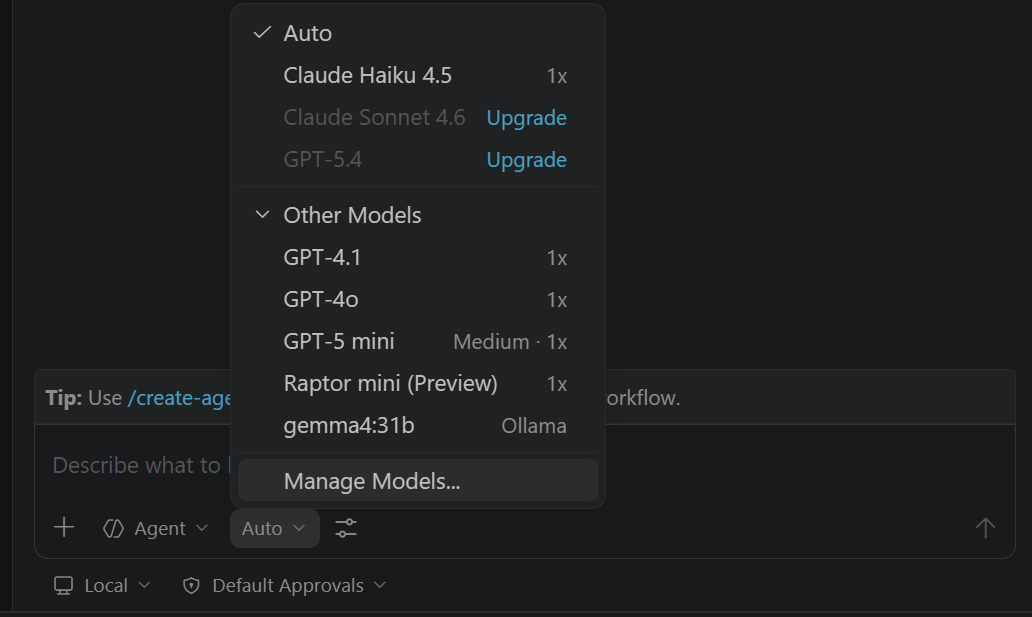
Ctrl+Alt+I/Cmd+Ctrl+I). At the bottom of the chat panel, click the model picker dropdown (it shows the current model, e.g. "GPT-5.6 Sol" or "Claude"). - Click "Manage Language Models" (the gear icon) in that dropdown to open the Language Models editor. If Ollama is not already listed as a provider, choose Add Models and select Ollama.
- VS Code scans your local Ollama instance and lists every model you have pulled. Tick the Gemma 4 variants you want available, such as
gemma4:e4b,gemma4:26b, orgemma4:31b. Click OK. - Go back to the model picker at the bottom of the chat. Gemma 4 now appears in the list alongside the cloud Copilot models. Select it.
How to use it
Once selected, the model answering your Copilot Chat requests is your local Gemma 4 model:
- Chat panel: Ask questions exactly as you would with cloud Copilot.
@workspace,#file, and slash commands like/explain,/fix,/testsall work while the selected local model generates the answer. - Inline chat: Highlight code, press
Ctrl+I(Cmd+Ion Mac), and type an instruction. The diff preview and accept/reject flow are identical to the cloud experience. - Edits across files: Switch the chat panel to Agent mode to make multi-file changes (the old Edit mode has been folded into Agent).
gemma4:e4bhandles small edits well; bump up togemma4:26borgemma4:31bif you want sharper results on multi-file refactors.
Important caveat about inline autocomplete: the model picker controls Copilot Chat, not the grey-ghost-text tab completions you see while typing. Those are still handled by GitHub's cloud Copilot model — you cannot currently swap them out for Gemma 4. If you want local tab autocomplete, stick with Continue (Method 1). This method is best thought of as "local model answering for chat + edits inside Copilot's UI", not a fully offline Copilot replacement.
Why I use this alongside Method 1
My daily setup is Continue for tab autocomplete (fast, local, always on) plus Copilot Chat with a Gemma 4 model selected for longer-form questions when I am online and already signed in. Two reasons: first, Copilot's @workspace indexer is genuinely good at pulling in relevant files from across the repo, and it can pair that editor context with a local model answer. Second, switching between Gemma 4 and cloud Copilot is a one-click model-picker change. When I need a fully offline session, I use Continue + Ollama instead.
Troubleshooting
- "Manage Language Models" option is missing: Update VS Code. The BYOK/Ollama integration requires a recent release — older versions only show the cloud model list.
- Ollama not detected: Run
ollama listin a terminal to confirm your models are visible. If the command works but VS Code sees nothing, restart VS Code entirely (close all windows) so it re-scanslocalhost:11434. - Responses are much slower than cloud Copilot: That is expected — you are running the model on your own hardware. Use
ollama psto confirm GPU offloading, and drop togemma4:e4borgemma4:e2bin the model picker if you need faster chat turnaround. - Some features stop working offline: Chat with a local model works without a connection on VS Code 1.122 or later, but inline suggestions and semantic search depend on the Copilot service. That is a Copilot limitation, not an Ollama problem. For fully offline work, tab autocomplete included, use Continue + Ollama instead.
- Tab autocomplete did not change: That is correct behaviour. Only chat and inline-edit requests route to Gemma 4; ghost-text completions stay on cloud Copilot.
Method 5: Skip VS Code Entirely — Use Gemma 4 from the Terminal
This is the method most guides never mention, and it is one of the most practical. You do not need any VS Code extension at all. If Ollama is running, you can use Gemma 4 directly from PowerShell, Command Prompt, or any terminal to read your project files and get AI-powered code analysis, explanations, and suggestions.
Ask Gemma 4 about a single file
The simplest workflow: pipe a file's contents directly into Ollama with a prompt. Open a terminal in your project folder and run:
PowerShell:
Get-Content .\public\index.html -Raw | ollama run gemma4:e4b "Explain what this code does and suggest improvements"Bash / Git Bash / macOS / Linux:
cat public/index.html | ollama run gemma4:e4b "Explain what this code does and suggest improvements"The model sees your full prompt followed by the file contents. You can ask anything — "find bugs", "add accessibility attributes", "convert this to React", "explain the CSS layout" — and Gemma 4 responds in the terminal with its analysis.
Analyse multiple files at once
To feed several files in a single prompt, concatenate them with file markers so Gemma 4 knows which code belongs to which file:
PowerShell:
$allCode = Get-ChildItem -Path .\scripts -Recurse -Include *.js,*.py | ForEach-Object {
    "--- $($_.Name) ---`n$(Get-Content $_.FullName -Raw)"
}
$allCode -join "`n" | ollama run gemma4:e4b "Review this code. Describe the architecture and flag any issues."
Bash:
find ./scripts -type f \( -name "*.js" -o -name "*.py" \) \
  -exec echo "--- {} ---" \; -exec cat {} \; \
  | ollama run gemma4:e4b "Review this code. Describe the architecture and flag any issues."
Set a system prompt for better results
You can tell Gemma 4 to behave like a specific kind of reviewer by adding a --system flag:
Get-Content .\public\blog\gemma-4-vscode.html -Raw | ollama run gemma4:e4b --system "You are a senior web developer and SEO expert. Be concise and specific." "Audit this HTML for SEO issues, accessibility problems, and performance improvements"Build a reusable PowerShell function
If you find yourself doing this regularly, add a function to your PowerShell profile ($PROFILE) so you can ask Gemma 4 about any file with a single command:
function Ask-Code {
    param(
        [string]$Prompt,
        [string[]]$Files,
        [string]$Model = "gemma4:e4b"
    )
    $context = $Files | ForEach-Object {
        "--- $_ ---`n$(Get-Content $_ -Raw)"
    }
    ($context -join "`n") | ollama run $Model $Prompt
}

# Usage examples:
Ask-Code -Prompt "Find bugs in this code" -Files .\scripts\build_blog_cluster.py
Ask-Code -Prompt "Explain the relationship between these files" -Files .\public\index.html, .\public\animations.js
Ask-Code -Prompt "Suggest performance improvements" -Files .\public\blog\*.html -Model "gemma4:26b"
For serious codebase work: use Aider
If you want a full terminal-based AI pair programmer — one that understands your entire repo, tracks file context, and can make edits directly — Aider is the best option. It works with Ollama out of the box:
- Install it:
pip install aider-chat - Navigate to your project folder in the terminal.
- Start a session:
aider --model ollama_chat/gemma4:e4b
Aider automatically maps your entire repository, lets you add specific files to the conversation with /add filename, and applies code changes directly to your files with git-tracked diffs. It is the closest thing to having a full AI pair programmer in your terminal — no VS Code required. For batch automation that goes beyond interactive sessions — running the same prompt across hundreds of files, translating, summarising, or scripted refactors — see my four batch pipeline patterns for local AI workflows.
Context window limits to keep in mind
When piping files into Ollama, you are limited by the context window of the variant you loaded. A rough rule: 1 token is approximately 4 characters, so 128K tokens gives you roughly 500KB of code in a single prompt. The E2B and E4B tags are listed with 128K context in Ollama; the 12B, 26B and 31B tags are listed with 256K. For larger codebases, be selective about which files you include, or use Aider which handles intelligent file selection automatically.
Getting the Most Out of Inline Code Completions
Tab-autocomplete is where a local AI assistant either feels magical or feels like a drag on your workflow. The difference comes down to configuration. Here is what I have learned from a month of daily use:
- Speed beats quality for autocomplete. A 200ms suggestion that is 80% right is far more useful than a 3-second suggestion that is 95% right. You lose your train of thought waiting for the perfect completion. Start with
gemma4:e4band drop togemma4:e2bif completions take longer than a second. - Verify GPU offloading. This is the single most impactful performance check. Run
ollama psin a terminal — the output shows which processor is handling inference. If it sayscpuinstead ofgpu, your completions will be 5–10x slower than they should be. On NVIDIA systems, make sure your drivers are current and set theOLLAMA_GPU_LAYERSenvironment variable if Ollama is not loading the full model onto the GPU. - Shrink the context window. If completions feel sluggish even on GPU, reduce the context window in your extension settings. A window of 2048 tokens is more than enough for inline completions and significantly reduces memory pressure and latency.
- Use prefix-and-suffix context when your extension supports it. Good autocomplete needs code before and after your cursor, not just the current line. Continue's autocomplete flow is designed around that context. If you are using another extension, check whether it sends suffix context, because it makes a noticeable difference in suggestion relevance.
Real Coding Workflows I Use Every Day
Autocomplete gets the headlines, but the chat interface is where Gemma 4 delivers the most practical value. These are the four workflows I reach for constantly:
Understanding inherited or unfamiliar code
Select a block of code — a function you did not write, a library method with a confusing signature, a regex that looks like hieroglyphics — and send it to the chat with Ctrl+L. Ask "Explain what this does step by step and flag anything that looks fragile." The 26B A4B model handles this remarkably well across Python, JavaScript, TypeScript, Dart, Go, and Java. It identifies design patterns, traces control flow correctly, and catches things like missing null checks or silent exception swallowing.
Refactoring with guardrails
Highlight a function, press Ctrl+I, and type something like "Refactor this for readability. Extract magic numbers into named constants. Add types." Gemma 4 produces clean diffs that you review before accepting. One thing to watch for: it tends to over-decompose code into too many tiny functions. If that happens, a follow-up prompt like "simplify — keep it under three functions" pulls it back to something sensible.
Generating test scaffolds
Paste a function into the chat and ask: "Write unit tests for this using Jest. Cover the happy path, edge cases like empty input and null values, and error conditions." Gemma 4 produces usable test scaffolds that cover the main scenarios. It is not as thorough as Claude or ChatGPT at finding obscure edge cases — but it saves you the tedium of writing boilerplate assertions. Treat the output as a starting point, then add the edge cases you know matter for your specific use case.
Diagnosing errors from stack traces
Copy an error message and the surrounding code, paste both into the chat, and ask "What is causing this and how do I fix it?" This is where Gemma 4 consistently impresses me. Common runtime errors, dependency conflicts, type mismatches, off-by-one bugs — it nails the diagnosis on the first try more often than not. Stack traces and standard error patterns are well-represented in its training data, and the local model has the full context of your pasted code without any truncation.
Choosing the Right Model Size for Your Hardware
Getting this wrong is the number one reason developers try Gemma 4, have a bad experience, and give up. The right model depends on what you are using it for and what your machine can handle:
| Model | Practical Hardware | Autocomplete Speed | Code Quality | Best For |
|---|---|---|---|---|
Gemma 4 E2B (gemma4:e2b) |
8-16GB RAM or small GPU | Very fast (100–300ms) | Basic — simple completions | Low-end GPUs, CPU-only machines, quick inline suggestions |
Gemma 4 E4B (gemma4:e4b) |
16GB RAM or 8GB VRAM | Fast (300–800ms) | Good — handles most tasks well | Most developers — the best all-round choice |
Gemma 4 26B A4B (gemma4:26b) |
32GB RAM or 16GB+ VRAM/unified memory | Moderate (800ms–2s) | Very good — complex logic and reasoning | Chat workflows, architecture questions, code reviews |
Gemma 4 31B (gemma4:31b) |
32GB+ RAM or 24GB+ VRAM/unified memory | Slower (1.5–3s) | Best — strongest reasoning ability | Difficult refactors, detailed explanations, less common languages |
Concrete examples: an NVIDIA RTX 3060 (12GB VRAM) runs gemma4:e4b comfortably. The RTX 4070 (12GB) handles it even faster thanks to the newer Ada Lovelace architecture. Apple Silicon Macs with M1 Pro/Max and 16GB unified memory run gemma4:e4b smoothly; machines with 24-32GB unified memory are better candidates for gemma4:26b or gemma4:31b.
My recommendation: run gemma4:e2b or gemma4:e4b for autocomplete and keep gemma4:26b loaded for deeper chat tasks if your hardware can handle it. Continue lets you configure different models for different features, so you can get the speed of the smaller model where it matters and the quality of the larger one where you need it.
Gemma 4 vs GitHub Copilot: What I Actually Found After a Month
This is the comparison that matters, so here is the honest version based on running both tools side by side on the same projects for several weeks.
| Feature | Gemma 4 (Local) | GitHub Copilot |
|---|---|---|
| Inline autocomplete quality | Good for common patterns, occasionally misses context | Excellent — reads your project structure |
| Autocomplete speed | Depends on your GPU (300ms–2s) | Consistently fast (100–300ms) |
| Project context awareness | Limited to active file and whatever you paste into chat | Indexes your workspace and open tabs |
| Chat and code explanation | Strong with the 26B A4B or 31B model | Very strong via Copilot Chat |
| Test generation | Covers main paths, sometimes misses edge cases | Better edge case coverage overall |
| Language support | Strong in popular languages (Python, JS, TS, Go, Dart) | Strong across almost everything, including niche languages |
| Privacy | Fully local — your code never leaves your machine | Cloud-based — code sent to GitHub/Microsoft servers |
| Offline availability | Yes — works without any internet connection | No — requires an active connection |
| Cost | Free forever | $10/month Pro ($39 Pro+), $19/month per Business seat |
| Setup effort | Moderate — install Ollama, pull model, configure extension | Minimal — install extension, sign in with GitHub |
Note: the privacy and offline rows describe Gemma 4 through a fully local setup such as Continue + Ollama. Copilot Chat + Ollama is more of a hybrid: chat with the local model now works offline and without sign-in, but Copilot's inline suggestions and workspace search still go through the Copilot service.
Who Should Use Gemma 4 and Who Should Stick With Copilot
Gemma 4 is the right choice when:
- Your company prohibits sending code to external servers. This is standard in finance, defence, healthcare, and any organisation with strict IP or compliance policies. Gemma 4 is the only serious option that keeps everything on-premises.
- You regularly code offline — on flights, in restricted networks, or in areas with patchy internet. Gemma 4 through Continue + Ollama works without a connection.
- You are a student, freelancer, or early-career developer who would rather not spend $120 a year on a coding assistant. Gemma 4 gives you a capable alternative at zero ongoing cost.
- You want hands-on experience with local AI infrastructure. Running models locally is an increasingly relevant skill in production engineering, and this is a low-stakes way to build that expertise.
- Your primary use case is chat-based — explaining code, refactoring, debugging. The quality gap between Gemma 4 and Copilot is much narrower for these tasks than it is for inline autocomplete.
Copilot is still worth the subscription when:
- Fast, accurate inline autocomplete is your top priority. Copilot is still meaningfully better at predicting your next line of code, especially in large codebases with complex interdependencies.
- You work across many languages and frameworks, including newer or less common ones. Copilot's cloud-based models have broader training coverage.
- You want a zero-configuration experience. Install the extension, sign in, done. No GPU requirements, no model downloads, no troubleshooting driver issues.
- Your team already has a Copilot Business or Enterprise licence. At that point, the cost is covered and the team-level features (audit logs, policy controls, organisational context) add genuine value.
For a wider comparison across all AI tools, see my full AI model comparison for 2026. And for specific tasks where the free model outperforms paid alternatives, read 5 real-world tasks where Gemma 4 beats paid models.
Frequently Asked Questions
What hardware do I need to run Gemma 4 as a coding assistant in VS Code?
A GPU with 8GB of VRAM gives you a comfortable experience with gemma4:e4b — that covers cards like the RTX 3060, RTX 4060 Ti, or RTX 4070. For the more capable 26B A4B model, you want 16GB+ VRAM or plenty of unified memory. If you are on CPU only, gemma4:e2b works but completions take 2-5 seconds instead of under a second, which makes inline autocomplete frustrating. Apple Silicon Macs with 16GB unified memory handle gemma4:e4b well through Ollama, and 24GB+ opens up the 26B A4B path.
Is Gemma 4 in VS Code as good as GitHub Copilot?
Not quite for inline autocomplete — Copilot's suggestions are faster, more contextually aware across your workspace, and handle a wider range of languages. Where Gemma 4 closes the gap significantly is in chat-based workflows: explaining code, refactoring, debugging from stack traces, and generating test scaffolds. The real advantages of Gemma 4 through Continue + Ollama are privacy, cost, and offline access. For developers whose company policies prohibit cloud-based tools or who want a capable assistant without the subscription, Gemma 4 is a genuinely strong option.
Can I use Gemma 4 and GitHub Copilot together in VS Code?
Absolutely, and this is actually my recommended setup for developers who have access to both. Use Copilot for inline tab-completions where speed and project context matter most, and use Gemma 4 through Continue for chat-based tasks where you want your code to stay local — explaining sensitive codebases, refactoring proprietary algorithms, having architectural discussions you would rather not send to a cloud API. You get the best of both worlds without them interfering with each other.
Which Gemma 4 model size is best for coding in VS Code?
Start with gemma4:e4b — it gives responsive completions on a decent GPU, handles Python, JavaScript, TypeScript, Dart, and most popular languages well, and produces solid code for everyday tasks. Move up to gemma4:26b if you find yourself hitting quality limitations on complex logic, architecture questions, or less common languages. gemma4:e2b is fine for simple completions and quick chat questions but noticeably weaker on anything requiring multi-step reasoning. gemma4:31b is only worth it if you have 24GB+ VRAM or 32GB+ unified memory and primarily use the chat interface for deep code analysis.
Can I use Gemma 4 from the terminal to analyse my project files without VS Code?
Yes. If Ollama is installed and running, you can pipe any file directly to Gemma 4 from PowerShell or any terminal. For example: Get-Content .\app.py -Raw | ollama run gemma4:e4b "Explain this code and find bugs". You can also concatenate multiple files, set system prompts with --system, or use a dedicated tool like Aider (pip install aider-chat) for full repo-aware AI pair programming from the command line. No VS Code or any editor extension required.
Can I run Gemma 4 locally inside GitHub Copilot Chat in VS Code?
Yes. VS Code's Copilot Chat supports adding locally hosted Ollama models directly in the model picker. Install the official Ollama extension (the built-in Ollama provider is deprecated), open Chat, click the model dropdown at the bottom of the panel, choose Manage Language Models, and tick a pulled tag such as gemma4:e4b, gemma4:26b, or gemma4:31b. Once selected, the local Ollama model answers chat and edit requests. Since VS Code 1.122 this works without GitHub sign-in, a Copilot plan, or an internet connection. Ghost-text tab autocomplete still uses the cloud Copilot model; for fully local inline autocomplete, pair this with the Continue extension (Method 1).
Related Posts
- Gemma 4 + Continue Plugin in Android Studio: Free Offline Ollama Setup (Gemini Alternative, 2026)
- How to Run Gemma 4 Locally for Free: A Beginner's Guide
- How to Use Gemma 4 for Local AI Workflows: Four Batch Pipeline Patterns
- Claude Code in VS Code: Extension Setup + Hybrid Workflow with Copilot (2026) — the paid alternative when you need stronger reasoning and multi-file refactoring
- How to Use Claude Design: Pitch Decks, Mockups, and Claude Code Handoffs (2026) — Anthropic Labs' Claude Design tool for prototypes, slides, and one-pagers with direct handoff to Claude Code.
- Gemma 4 vs ChatGPT vs Claude vs Copilot: Best AI Model Comparison in 2026
- 5 Real-World Tasks Where Gemma 4 Beats Paid AI Models
- Gemma 4 vs Gemini: What's the Difference and When to Use Which
- Gemma 4 vs GPT-4o vs Llama 4: Which Free AI Model Is Best for Excel Formulas?
- Gemma 4 for Data Analysis: Can It Replace ChatGPT for Spreadsheet Work?
- Copilot Agent Mode in VS Code — Microsoft’s AI coding agent inside the editor.
- DeepSeek in VS Code — open-weight alternative for code completion.
- Gemini CLI in VS Code — Google’s terminal-first AI coding tool.
- Gemini CLI for Android Studio and Flutter — using Gemini CLI in mobile development workflows.
- OpenCode in VS Code — open-source AI coding assistant.
- Windsurf for Flutter Development — agentic IDE for Flutter projects.
- Cursor for Flutter Development — AI-first editor for Flutter apps.
- Claude Code in Android Studio — Anthropic’s coding agent for mobile dev.